A customer is waiting in line. You have to go and get your colleague. But if you put the call on hold at your extension, no one else can take it.
This is where call park comes in handy. Neither classic call waiting, nor blind transfer, call parking places the call in a numbered slot, which can be retrieved from any station on the system.
Whether you’re on Teams, Webex or a cloud PBX, you’ll find here the universal logic of park-and-ride, the codes you need to know depending on your tool, and a checklist to never lose a call on the way again.

Boost the productivity of your sales teams with Kavkom, the 100% cloud-based business telephony software.
Schedule a demo
Park a call vs. hold vs. transfer: which to choose?
Three functions, three different situations. Yet many people confuse them, and that’s where calls get lost.
Here’s what it means in concrete terms:
- Call waiting blocks the call on your extension. The caller hears the music on hold, but the call remains attached to your line. No one else can pick it up. If you leave your desk, the call waits… or hangs up.
- Blind transfer sends the call directly to another extension or number, without you knowing if someone is picking up. Handy when you’re sure the colleague is available. Risky otherwise.
- Call parking places the call in a numbered parking space in the telephone system.
You’re probably wondering: when should I use parking instead of the other two?
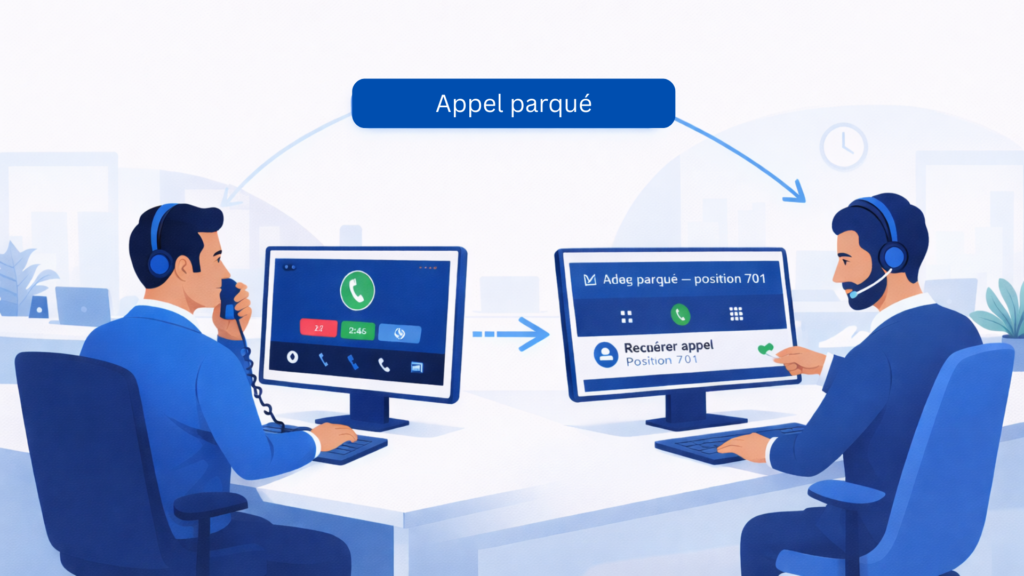
Typical case: you’re at reception, and a customer calls to speak to Marc in the technical department. Marc is out in the open-plan office. You can’t transfer the call directly to him: you don’t know if he’s at his desk. And you can’t hold the call on your extension while you go and pick it up.
Solution: you park the call on slot 701, shout to Marc “call parked on 701”, and he takes it from his own phone by dialing the code. Simple. Zero risk of loss.
What does the caller hear during this time? Usually music on hold or a message configured by the system administrator. It’s no different from conventional call-waiting on the client side.
Call park allows an agent to free his or her extension while leaving the call available for another team member.
How to park a call and retrieve it in 4 steps
The method is simple. But every step counts: to miss one is to risk losing the caller.
Step 1: Alert the caller with the right script
Before any technical manipulation, talk to your customer. Always.
Concrete script to use: “I’ll put you on hold for a few moments while I transfer your call to the right person. Do not hang up.”
Short, reassuring, clear. The caller knows he won’t be cut off. And you never hang up on the active line until you’ve activated parking.
Step 2: Activate parking and identify orbit
Press the Park softkey on your terminal or dial your system’s dedicated code (e.g. *68 on some PBXs).
The system automatically assigns a numbered location (orbit), e.g. 701. Write it down immediately. This is the number your colleague will need to dial to resume the call.
Step 3: Pass on information to a colleague
Quickly. The caller is patient.
Send an instant message: “Parked call 701, customer Dupont.” Or announce it orally if your colleague is within earshot.
The key: give the exactlocation number and the context of the call in one sentence.
Step 4: Recover the call from the other extension
Your colleague dials the recovery code on his extension, often *88 + orbit number, or via a dedicated line key depending on the system.
Theparked call switches to his terminal. The customer resumes the conversation seamlessly, without having heard anything other than the music on hold.
Park a call on Teams, Webex and PBX: codes to know
By now, you’re familiar with the universal logic of parking. But in practice, each tool has its own codes and its own way of working. Here’s what you need to know, depending on your environment.
Here’s a quick comparison before going into detail:
| Tool | Parking code | Code to retrieve | Special features |
|---|---|---|---|
| Webex | *68 + extension | *88 + extension | Also available via app (Park button). Configurable timeout. |
| Microsoft Teams Phone | Graphics-only interface | Graphics-only interface | No standard *# codes. Requires Teams Phone license. |
| 3CX (PBX) | Blind transfer to *00 to *09 | *10 to 19 (+ optional extension) | Several simultaneous orbits possible. |
| Avaya (PBX) | Depends on admin configuration | Depends on admin configuration | Customized codes according to deployment. |
On Webex, the procedure is the most standardized. During an active call, dial *68 followed by the extension where you wish to park the call. To retrieve it from any office phone in the organization, dial *88 + the park extension. If you’re using the Webex application, the “Park” button can be accessed via the “More” menu during the call. The interface then displays the assigned extension for 10 seconds: make a note of it immediately before it disappears.
Warning: if no one retrieves the parked call within the time configured by your administrator, the call automatically returns to the origin. This delay is configurable, but varies from deployment to deployment.
On Microsoft Teams Phone, forget the codes. The parking feature is managed entirely via the graphical interface: a “Park” button appears during the call if your administrator has activated the function. Your colleague receives a notification and can resume the call with one click. No *68, no *88. If you don’t see this button, it’s probably a question of admin rights or Teams Phone license.
On a classic PBX like 3CX, the logic is based on numbered orbits. To park, make a blind transfer to *00 to *09 (each number corresponds to an orbit). To recover, dial *10 to *19 depending on the orbit used. Example: you park on orbit 1 via *01, your colleague retrieves by dialing *11 from his own station.
Please note: these codes may vary depending on your system administrator’s configuration. If a code doesn’t work, check your PBX settings before concluding that the function is missing.
Simplify call management with the Kavkom cloud switchboard
Call parking is a classic function of many telephony systems. But in a structured sales or customer service environment, the challenge is above all to manage calls efficiently between several agents.
This is precisely the role of the Kavkom cloud switchboard: to centralize calls, distribute communications between teams, and enable managers to supervise agent activity and performance in real time.
ith Kavkom, calls can be managed from the webphone, a softphone or the mobile application. Call parking is carried out directly from the interface, without the need to memorize complex codes as on some PBX systems. Call parking is carried out directly from the interface, then the agent can pass on the information to the colleague to pick up the call.
Here’s what it means for your team:
- No *# code to remember: actions can be accessed directly from the interface, with no documentation to consult in a hurry.
- Real-time supervision: the manager can see live which calls are in progress, on hold or parked, and can intervene if a call goes unanswered for too long.
- Human, French-speakingtechnical support: Kavkom teams accompany customers by email, telephone or WhatsApp, with real, reactive assistance for configuration, training or incident resolution.
In a small or medium-sized team, for example, parking enables a receptionist to quickly transfer a call to an available member of staff, without tying up the line.
The call can then be quickly transferred to the right person. The aim is to simplify call management for teams handling a high volume of calls.
Boost the productivity of your sales teams with Kavkom, the 100% cloud-based business telephony software.
Schedule a demo
Anti-loss checklist: why parked call recovery fails
You have parked the call. Your colleague dials the code. And… nothing. The call has disappeared.
This type of situation is common when parking or retrieval is misconfigured. Here are the three main reasons and how to avoid them.
The timeout has passed.
Each system configures a maximum delay for a parked call. On Webex, this delay is often 60 seconds by default. On a conventional PBX, it can range from 30 seconds to several minutes, depending on the admin configuration.
After this time, the call does not remain on hold indefinitely. It automatically returns to the origin or goes to voicemail. If your colleague takes too long to retrieve the call, the caller is returned to you… or hung up.
Simple rule: pass on the information to your colleague immediately after parking. Not in two minutes. Do it now.
The feature is not enabled by the administrator.
It’s the most frequent cause of failure, and the most silent. On Teams Phone, the “Park” button only appears if your network administrator has activated the function in your organization’s administrator rights.
Same thing on Webex or a PBX: if parking is not configured on the admin side, codes *68 and *88 will do nothing. No visible error. Just… nothing.
If you don’t see the function in your interface, contact your administrator before looking elsewhere.
Code or location number error.
Your colleague dials *11 instead of *12. Or he types the wrong orbit number. The parked call stays there, nobody picks it up, the timeout expires.
The solution: be precise in your message. Not just “parked call” but “parked call in orbit 2, code *12, customer Martin, HR department.”
These three situations account for the majority of parked call recovery failures.
Things to remember
Parking a call isn’t just putting it on hold. It’s placing it in a virtual “parking lot” where your entire team can retrieve it, freeing up your line without ever losing the customer.
The method is simple: inform your contact person, activate parking to obtain a location number, then immediately pass it on to your colleague.
Rapid transmission of information to the colleague is essential to avoid losing the call.
If recovery fails, it’s often because the timeout has passed or because the function has not been enabled by your administrator. Check these two points first.