
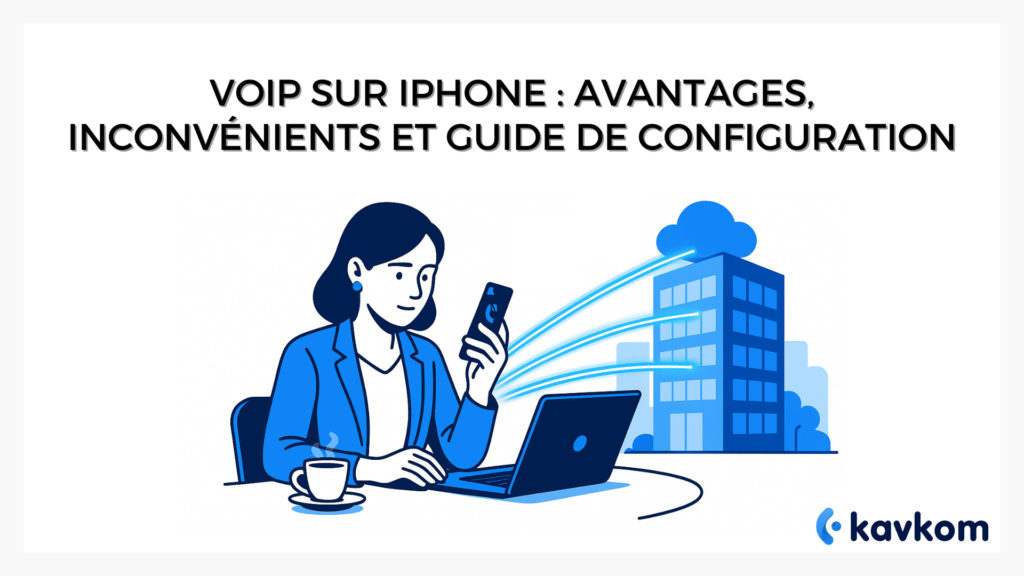
With VoIP on iPhone, you can manage your business calls effortlessly via the Internet. Your Kavkom business number remains visible, your contacts are centralized and your exchanges recorded, all without a SIM card or mobile line.
You don’t need a second phone to use WhatsApp and make unlimited calls. Everything happens in a single application, designed for your everyday professional life.
In this guide, you’ll discover what VoIP on the iPhone is, how it works, the advantages and limitations you need to be aware of, and above all how to configure it easily so that your calls follow you everywhere… or rather, whenever you decide, of course.
Points to remember :
- VoIP on iPhone lets you make and receive business calls from anywhere, without the need for a fixed line or additional hardware.
- You benefit from total mobility, better cost control and a consistent professional image thanks to your company number.
- Good messaging is essential for unlimited calls. Internet connection remains essential for stable, smooth call quality, whatever solution you choose.
- A few simple gestures (strong password, stable network, active notifications) are all it takes to make your communications secure and fluid.
- In just a few minutes, you can set up your iPhone VoIP and centralize calls, contacts and history in a single application.

What is VoIP and how does it work on iPhone?
Before we get down to the nitty-gritty, let’s lay the foundations for using the best mobile applications.
VoIP(Voice over Internet Protocol) is a technology that enables you to make and receive calls via the Internet, without the need for a traditional telephone network. Your voice is converted into digital data, transmitted over your Wi-Fi or mobile (4G/5G) connection, then played back as sound to the other party.
In short, your iPhone becomes a fully-fledged business line.
No need for a secondary SIM card, no additional hardware. A simple VoIP application downloaded from theApp Store, your SIP credentials, and you can call as if you were in the office.
VoIP, VoWiFi and Wi-Fi Calling: what’s the difference?
These three technologies are similar, but don’t play quite the same role.
- VoWiFi (Voice over Wi-Fi) is an option offered by your mobile operator: it uses your existing line, but via the Internet.
- Wi-Fi Calling is the Apple version of the same service, integrated directly into iOS.
- VoIP, on the other hand, is independent. It works with any provider or messaging application. cloud telephony platform, and that’s what makes it so convenient for businesses.
So you can manage your business calls from an iPhone or iPad, regardless of your cell phone plan or location.
Quick tip
For smooth call quality, test your Internet connection before each configuration.
A stable data rate of around 100 kbps per call is all you need to enjoy HD sound.
The iPhone includes a Wi-Fi calling function, making it easy to use VoIP on a daily basis.
Why use VoIP on iPhone? Concrete benefits for professionals
You’re already on the phone all day. So you might as well make every call count.
VoIP on the iPhone makes your communications simpler, more professional and, above all, more mobile.
1. Communication continuity
You remain available wherever you are.
A customer calls your company’s number, and you pick up the call from your iPhone, even on the other side of the country. Calls are routed via the cloud, without the need for a landline.
2. Cost reduction
Calls are made via the Internet, not the mobile network.
Result: voip service, no international overcharging and a controlled phone bill.
3. Productivity and responsiveness
Modern VoIP applications centralize your calls, contacts and history.
You can consult your recordings, transfer a call to a colleague or create a conference in a matter of seconds.
4. Professional image
Your company number is displayed on every outgoing call.
No more confusion between personal and business lines: your image remains consistent, wherever you call from.
Key benefits of mobile VoIP
| Advantage | What this means for you |
|---|---|
| Total mobility | Manage your calls from anywhere. |
| Lower costs | Internet calls, without international surcharges. |
| Increased efficiency | History, transfers and conferences at your fingertips. |
| Image pro | Company number displayed, even from your iPhone. |
Turn your iPhone into a cloud telephony station
Imagine a single device, a single number, and yet the same efficiency as a complete corporate switchboard.
That’s exactly what a VoIP application like Zoiper makes possible. Kavkom.
With theKavkom iOS app, you can make, receive and transfer business calls from your iPhone and iPad, while keeping control of your phone number. VoIP line.
The interface is simple: call history, recordings, internal transfers, conferences, availability status. You can work as a team, even remotely, without losing the fluidity of an office.
Every call remains linked to your business number: your customers recognize your company, your employees contact you with a click, and all interactions remain centralized in the cloud.
Step-by-step guide: how to set up VoIP on your iPhone
Setting up VoIP on your iPhone requires neither technical skills nor special equipment. It takes just a few minutes to turn your phone into a fully-fledged business line.
Here’s how to do it, step by step.
1. Download a VoIP application from the App Store
Open theApp Store and search for a VoIP application compatible with iOS.
Telephony providers such as Kavkom allow you to use a business VoIP line directly on your iPhone.
2. Enter your SIP identifiers
Once you’ve installed the application, log in using the SIP credentials provided by your cloud telephony provider.
These are the credentials that link your account to your company number, enabling you to manage your business calls.
3. Authorize the necessary accesses
On first launch, the app will ask you for permission to access the microphone, send push notifications via your messaging application. notifications and use the Internet connection.
Accept these permissions so that the app can receive calls even in the background.
4. Activate automatic switchover between Wi-Fi and 4G
In the app or iOS settings, check that automatic switching between Wi-Fi and mobile data is enabled.
This keeps your calls active if the Wi-Fi network weakens.
5. Test a first call
Call a colleague or another device to check sound, microphone quality and Internet connection stability.
If everything is smooth, your VoIP is now activated and ready to use.
Quick tip
If your calls are cut off too quickly, consider deactivating Power Save mode during your calls.
This mode limits background processes and can interrupt certain VoIP applications, even when the connection is excellent.
In just a few simple steps, you’ve successfully set up your voip service. configure VoIP on your iPhone.
Your personal phone now becomes a complete business tool, capable of managing your calls, history and contacts from a single interface.
Comparison: VoIP on iPhone or physical IP phone?
Should you opt for the mobility of a VoIP iPhone application or the stability of a traditional IP phone?
Both options have their advantages, depending on the way you work.
If you manage remote telecommuting teams, mobile VoIP is your ally.
If you mainly receive your calls from a fixed office, an IP phone may still be relevant.
Here’s a quick comparison to help you choose.
| Criteria | VoIP on iPhone | IP phone |
|---|---|---|
| Mobility | Total, usable on iPhone or iPad, even on the move | Fixed, limited to one workstation |
| Hardware | None, everything goes through the cloud | Requires a compatible IP phone |
| Installation | Instant via iOS app | Technical, often via a technician |
| Cost | Reduced, no equipment costs | Varies according to model and maintenance |
| CRM integration | Yes, via connected cloud applications | Limited, depends on telephone system |
In short: VoIP on the iPhone is best suited to mobile teams and contractors working from different locations.
IP phones are still suitable for businesses requiring fixed phones or more complex internal configurations.
Possible drawbacks and limitations of VoIP on iPhone
No technology is perfect, and VoIP on the iPhone is not immune to a few constraints.
Knowing what they are means knowing how to avoid them.
1. Dependence on the Internet connection
Call quality depends directly on the stability of the Wi-Fi or 4G/5G network. An unstable connection can create micro-cuts or slight latency.
According toARCEP‘s 2025 report, the majority of VoIP problems are linked to local network saturation, not to the technology itself.
2. Higher battery consumption
VoIP applications often run in the background to receive calls. This can slightly reduce the phone’s autonomy, especially if several tools are running at the same time.
3. Configuration risks
Poor management of SIP credentials can lead to problems with your voip service. or a weak password can expose the line to unauthorized connection attempts.
Serious providers offer encrypted connections and strong authentication: this is the case with professional cloud telephony platforms like Kavkom.
4. Small call delays
On some saturated networks, a slight delay (of the order of a second) may occur between transmission and reception. In a professional context, this is rare but useful to know.
Tips for smooth, safe operation
A VoIP app on iOS is a fantastic productivity tool, provided it’s used under the right conditions.
Here are five simple reflexes for stable, secure communications.
5 reflexes to adopt
- Choose a strong SIP password.
Avoid simple or reused codes to protect your phone number. A strong password limits the risk of unauthorized access. - Choose a stable network.
Good Wi-Fi remains the basis of a smooth Internet connection. If possible, give priority to Wi-Fi in the app settings. - Activate push notifications for your favorite messaging application.
They guarantee that you won’t miss any incoming calls, even when the application is running in the background. - Test your Bluetooth microphones and headsets regularly.
Professional calls deserve clear sound. Check that your peripherals are properly detected and free from interference. - Plan your “Available/Busy” hours.
Some applications, like Kavkom, let you set your status so that you only receive calls at the times you want. A real aid to disconnection.
By following these simple steps, you’ll enhance your VoIP security and ease of use, whether you’re in the office or on the move.
FAQ – Frequently asked questions about VoIP iPhone
How do I activate VoIP on my iPhone?
Download a compatible VoIP application from the App Store, enter your SIP credentials and authorize access to the microphone and notifications.
What are the disadvantages of VoIP?
An unstable Internet connection may cause outages or slight latency. Battery consumption may also be slightly higher.
Can I use VoIP on my iPad?
Yes, VoIP-compatible iOS apps also work on iPad, perfect for videoconferencing or secondary landlines.
Does VoIP work without a SIM card?
Yes, it relies solely on a Wi-Fi or mobile connection. You can make and receive calls without an active SIM card.
What’s the difference between VoWiFi and VoIP?
VoWiFi depends on your mobile operator, and extends your classic line over the Internet.
VoIP, on the other hand, is independent: it works via a third-party application and a professional line hosted in the cloud.
Conclusion: why VoIP on iPhone appeals to professionals
VoIP on the iPhone has changed the way professionals communicate.
It combines the flexibility of a cell phone with the structure of a landline, without the need for hardware, complex installation or double lines.
With a simple application, you can make and receive business calls, display your company number, collaborate with your teams and keep track of your exchanges, wherever you are.
It’s this continuity that appeals to managers, sales reps and freelancers alike: staying in touch without sacrificing your freedom.
One device, one interface, and yet all the power of a complete voip. cloud telephony service system.
And if you’d like to try out a simple, high-performance solution, Kavkom lets you use your VoIP business line, directly on iOS (or Android), with all the features of a modern business switchboard, all 100% cloud, without SIM cards or hardware.