It’s often as simple as that. An unanswered call can be enough to tarnish a company’s image. In the eyes of the customer, it’s the sign of an overworked, hard-to-reach organization.
The consequences go beyond image. Every lost call can mean a lost sales opportunity. And for teams, the stress increases when unsatisfied contacts have to be called back urgently.
In this article, you’ll learn how to activate, test and adjust your call transfers, so that every contact always finds an available ear.
Points to remember :
- Call forwarding is a simple tool that automatically redirects your incoming calls to avoid losing important contacts.
- There are different types of transfer (unconditional, if busy, if unreachable, if no answer), and each responds to a specific need for availability.
- Activation varies according to the medium: landline, mobile, VoIP or cloud solutions, but the logic always remains the same.
- Adopting a few practical reflexes, such as adapting your settings according to the time of year, or having a back-up line, will help maintain the continuity of your communications.


Boostez la productivité de vos équipe commerciales grâce à Kavkom, le logiciel de téléphonie d’entreprise 100% cloud.
Planifier une démo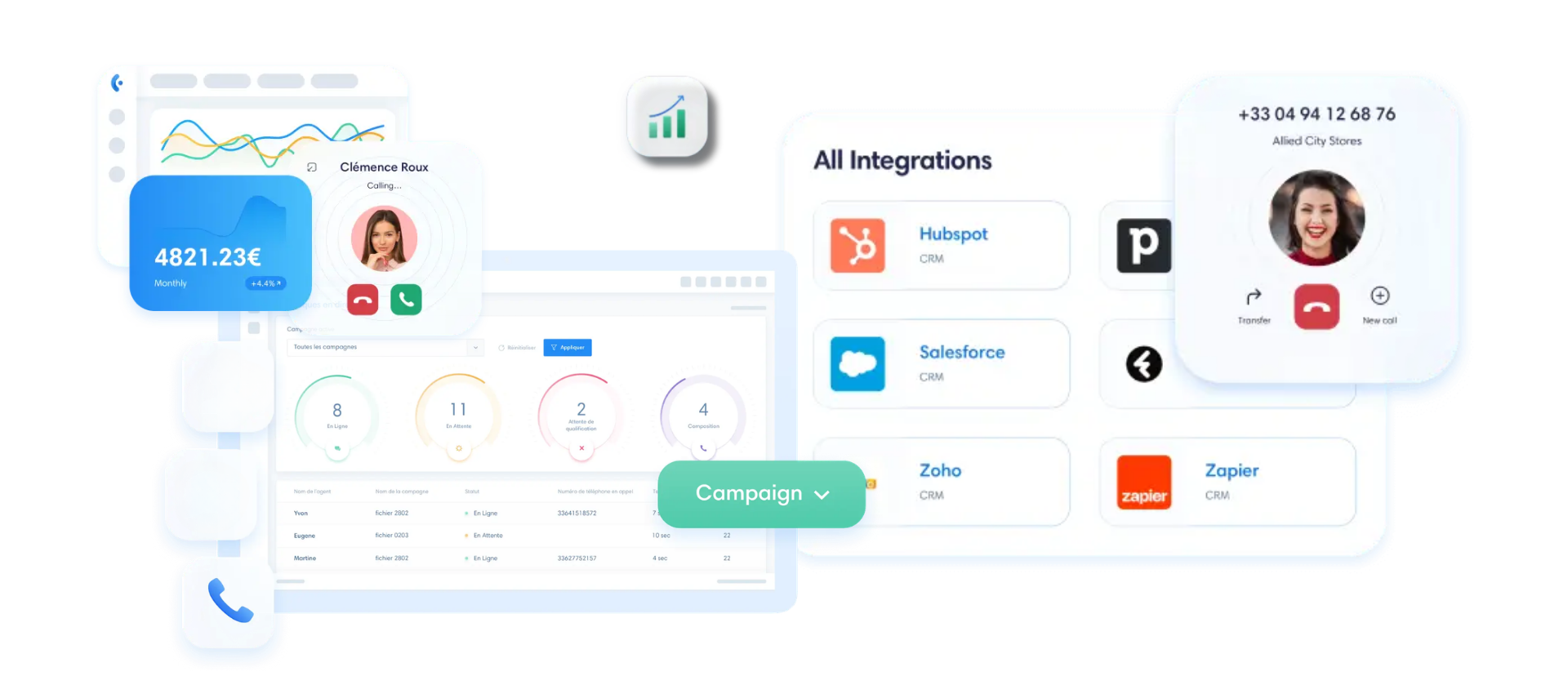
What is call forwarding?
Call forwarding is a telephone function that automatically redirects an incoming call to another number.
This number can be a colleague’s, a business mobile, a switchboard or another company number.
Please note the nuance. A transfer redirects a call to another active line. Forwarding, on the other hand, can include voicemail: the call is not picked up by a person, but stored for later recall.
What is call forwarding?
In a company, call forwarding makes it possible to :
- avoid missed calls
- redirect customers to the right person
- distribute calls among several employees
- maintain company availability even when on the move
It’s a simple function, but very useful for sales and customer service teams who need to be contactable at all times.
Use cases for call forwarding in companies
- You’re on the move: office calls follow on your mobile.
- You’re on vacation: the line is redirected to a trusted colleague.
- Your team receives too many calls : the flow is automatically distributed over several lines.
- You work remotely: your business number continues to follow you.
The different types of call transfer
Not all transfers are alike. Depending on the situation, you can choose the most suitable type.
Unconditional transfer
It’s the easiest way: all calls are automatically redirected to another number. The original line doesn’t even ring.
Transfer if busy
It is activated only when the line is already in use. The caller does not hear the busy signal, but is redirected to an available number.
Transfer if unreachable
Call forwarding is triggered when the phone is switched off or out of range. Ideal for areas with poor coverage or temporary outages.
Transfer if no answer
If no one picks up after a certain time, the call is forwarded to another line. Handy for preventing the caller from hanging up after several rings.
Which transfer for which need?
| Transfer type | When to use it | Main benefit | Limits to be aware of |
|---|---|---|---|
| Unconditional | Prolonged absence, total teleworking | Simplicity, no lost calls | More control over direct calls |
| If busy | Busy line | Avoids busy tones | Can saturate the destination number |
| If unreachable | No network, phone off | Maintains availability | Depends on network coverage |
| If no answer | Occasional overflow, unanswered calls | Offers a “second chance | Requires a set delay |
Direct transfer and accompanied transfer: what’s the difference?
In some situations, transferring a call is more than just redirecting the communication.
There are two main ways to do this.
Direct transfer
The call is immediately redirected to another person.
The agent does not speak to the colleague before the connection is made.
The customer arrives directly on the new line.
This is the fastest method.
Accompanied transfer
In this case, the agent first contacts his colleague to explain the situation.
Once the context is given, the call is transferred.
This method is widely used in :
- customer services
- sales teams
- call centers
The main advantage is simple: the customer doesn’t have to repeat his request.
How do I activate and deactivate call forwarding?
The principle is simple: each type of device or solution offers its own path. Here are the most common options.
Landline telephone
On a landline or operator line, the transfer is configured directly via the handset menu, or using the sequences provided by the operator. The procedure varies slightly from provider to provider, but the result is the same: your calls are automatically redirected.
Mobile (Android & iPhone)
Android: go to the Phone application, open Call settings, then select the Call forwarding. Then choose the type of forwarding (always, if busy, if unreachable, if no answer) and the destination number.
iPhone: open Settings > Phone > Call forwarding. Activate the option and enter the desired number. Depending on the operator, this menu only allows unconditional forwarding; for conditional forwarding, you’ll need to use the operator’s service.
VoIP / IPBX
With a softphone, webphone or physical IP phone,settings are made directly in the interface. You define the type of forwarding and the target number. Some solutions also offer simultaneous ringing: your line and another ring at the same time, for added security.
Cloud solutions
With a VoIP cloud telephony solution, configuration becomes much simpler. Call transfers are configured directly from an online interface.
With just a few clicks, you can define :
- to which number to redirect the call
- when transfer is activated
- which teams should receive calls
Example: a platform like Kavkom centralizes your settings. You choose when and to whom to transfer your calls, all from one easy-to-use space.
And the benefits don’t stop there. These solutions integrate advanced functions that go beyond simple referral. The most telling? Accompanied transfer.
Imagine: a customer calls, but you need to direct them to a colleague. Before switching the call, you can give him/her the context in private. When the colleague takes the call, the conversation resumes naturally, without interruption or repetition for the customer.
This little detail makes a big difference: it smoothes internal collaboration and enhances the experience for your contacts.
Most common call transfer codes
On some telephone lines, call forwarding can also be activated using operator codes. operator codes.
These codes are entered directly on the telephone keypad.
Here are the most frequently used.
| Action | Code |
|---|---|
| Activate unconditional transfer | *21number# |
| Disable transfer | #21# |
| Transfer if busy | *67number# |
| Transfer if no answer | *61number# |
These codes may vary from operator to operator. If you use a cloud telephony or VoIP solution, these settings are generally accessible directly from an online interface.
Boostez la productivité de vos équipe commerciales grâce à Kavkom, le logiciel de téléphonie d’entreprise 100% cloud.
Planifier une démoPractical steps for setting up and testing your transfer (universal method)
Setting up acall transfer is less daunting than it sounds. The key is to proceed calmly, step by step, and check each time that everything’s working. Think of the process as a short course of adjustments, which will save you a lot of hassle later on.
Step 1: Check service activation
First of all, make sure that this function is included in your offer. Some operators offer transfer by default, while others require prior activation. Most smartphones include this setting in their menus, but availability may vary according to model or software update.
With VoIP or cloud, the question is even simpler: the service is usually activated from the outset. All you have to do is connect to the web interface or application. It’s a good idea to take this time for an initial check, to avoid looking for a technical problem that doesn’t exist.
Step 2: Choose the type of transfer
Would you like all your calls to be redirected without exception? Or would you prefer redirection to be triggered only in specific cases? Now’s the time to decide.
- Unconditional: ideal if you’re on vacation or working 100% on the move.
- If busy: useful when you’re often already online and don’t want to keep your callers waiting.
- If unreachable: reassuring if you know your network coverage is uncertain.
- If no answer: practical to avoid customers hanging up after several rings.
The choice of transfer type therefore depends directly on your professional context and agenda.
Step 3: Enter the destination number
This is the heart of the settings. Specify the number to which your calls should be forwarded. This could be your personal mobile, an available colleague’s extension, a switchboard number or even a voicemail box.
Tip: always choose a line that is truly operational. Transferring a call to a full voicemail system or to a number that is rarely monitored shifts the problem rather than solving it. It’s better to check that the chosen number is ready to receive traffic.
Step 4: Make a test call
Never skip this step. From another phone, call the original number and check what’s happening. Does the call ring on the destination line? Is the transfer smooth, or is there a delay?
If you work in a team, ask a colleague to play the role of caller. This will give you immediate feedback on the quality of the customer experience. This test call only takes a few seconds, but it gives you a clear view of what your caller is really experiencing.
Step 5: Adjust if necessary
If the test does not meet your expectations, go back to the settings and correct it. You can change the type of forwarding, check that the destination number is correct or adjust the time before forwarding is triggered.
And if, despite your best efforts, the transfer refuses to activate correctly, don’t hesitate to contact your operator’s support team, or that of your cloud solution. Their assistance can quickly unblock a situation and save you a lot of time.
This universal process applies whether you’re using a landline, a smartphone or a cloud solution. Think of it as a little ritual: check, configure, test, adjust. Once adopted, it becomes the best guarantee for leaving no call to chance.
Quick tip
After each modification, always make a test call. This is the easiest way to check that call forwarding is working properly and that calls are being redirected to the right number.
Tips to ensure call continuity
A well-configured transfer is efficient. But for it to remain useful over time, a few simple reflexes make all the difference.
- Check your settings regularly. A software update can sometimes reset your settings.
- Adapt to the season. Vacations, telecommuting or peaks in activity do not require the same dismissal rules.
- Keep an eye on costs. Some international transfers may be billed by the operator.
- Have a backup plan. Simultaneous ringing or referral to a colleague avoids dead ends.
In short: the right reflexes to make sure you don’t miss a thing
- Check your settings regularly.
- Adjust to your schedule.
- Anticipate potential costs.
- Provide a fallback line.
Boostez la productivité de vos équipe commerciales grâce à Kavkom, le logiciel de téléphonie d’entreprise 100% cloud.
Planifier une démoFAQ – Frequently asked questions about call forwarding
How do I activate and deactivate call forwarding?
On mobile, via Android or iPhone settings. On landline, via operator sequences. In VoIP or cloud, via an online interface.
How do I transfer calls from my mobile to another number?
By configuring the transfer directly in the device settings or via your operator’s customer area.
What’s the difference between unconditional and conditional transfer?
Unconditional redirects all calls without exception. The conditional is only activated in certain cases (busy, unreachable, no answer).
How do I know if my transfer is active?
A simple test: call your own number from another line. If the call is redirected, the transfer is active.
Do I have to pay for call forwarding?
It is generally included in national rate plans. However, calls transferred abroad may be billed at the current rate.
Conclusion
Well-configured call forwarding prevents dropped calls and maintains your company’s availability. When a customer calls, he or she is quickly redirected to the right person, without interruption or unnecessary waiting. The result: smoother communication and a better experience for your callers.
In a professional environment, this function becomes even more useful for sales and customer service teams. It helps to distribute calls, ensure continuity of service and ensure that no opportunity is missed.
With a cloud telephony solution like Kavkom, call transfer management becomes much simpler. Redirection rules can be configured in just a few clicks from an online interface, with no hardware to install. So you keep control of your calls, while offering your customers a more professional experience.